A Checklist to Evaluate Educational Apps for Distractions
Many learning apps contain features that actually distract students from learning, and you can use this 15-minute routine to spot them.
Your content has been saved!
Go to My Saved Content.
As educators, we often choose learning apps in hopes of enhancing and supporting curriculum: We want our students to have extra practice with concepts and be able to analyze and synthesize bigger ideas. But many educational apps include design features that pull attention away from learning—sometimes subtly, sometimes aggressively.
In our testing work for the University of Michigan Children’s Learning App Evaluation and Review (CLEAR), one theme kept coming up: Reviewers could usually agree when an app’s learning design was strong, but they also noticed that small distractions (ads, reward loops, timed pressure, unrelated games) could quickly overpower instruction, especially for younger learners.
Since most teachers do not have the time to read long research studies on apps or spend hours researching a new app, we developed a quick, 15-minute guide that helps teachers to screen apps for distraction risks, using research-informed practices.
What counts as a learning distraction?
In an education app, we define a distraction as anything that competes with the learning task—especially when the app feature makes it hard to stay on task or pressures students into actions that don’t support learning.
In our review of education apps, the most common distractions fell into the following categories:
- Ads and upsells (including ads that must be watched to earn some incentive).
- Reward loops that outweigh the learning (e.g., coins, streaks, endless prizes).
- Time pressure that pushes speed over thinking and learning.
- Unrelated mini-games embedded inside a “learning activity,” often as a reward.
- Lures that nudge students to stay in the game for reasons other than learning.
- Hyperlinks that are embedded in the learning activity and, when clicked, take students to a different page or open a pop-up window. These include hyperlinks that are content-related (such as a definition of a word).
In order to easily spot these, teachers can follow the quick distraction-check routine below.
15-Minute Distraction-Check Routine
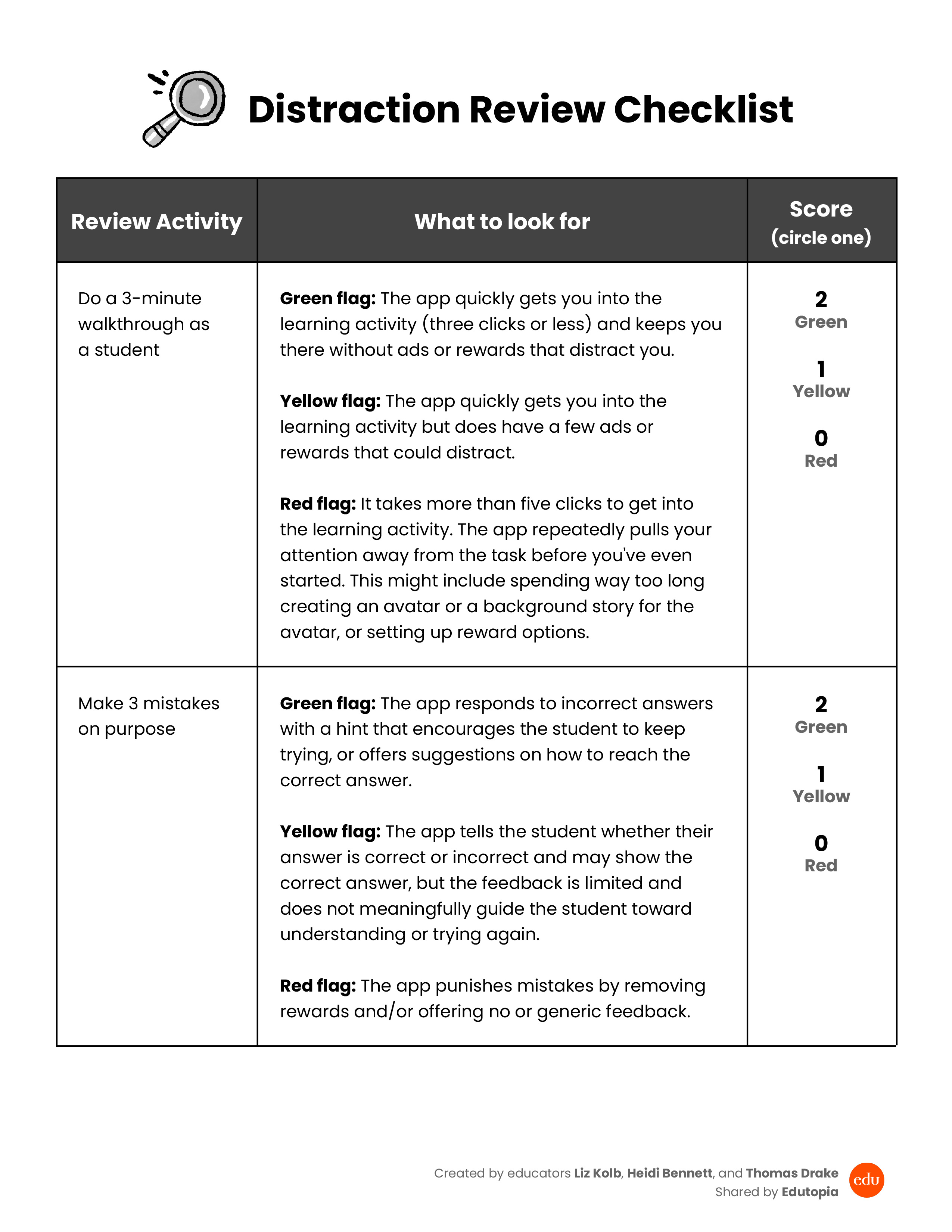
Step 1: Do a three-minute walkthrough as a student. Open the app, create a student account (if needed), and start an activity quickly, just as a student might (don’t read all the instructions). Pay attention to what the app does when you behave like a student.
- How many taps/clicks are required before learning begins?
- Are there pop-ups or ads right away?
- Are there characters, animations, or rewards that interrupt the flow?
Green flags: Fewer than three clicks are required to start the learning activity (these clicks include building an avatar or any “fun” getting-started piece). The app quickly gets you into the learning activity and keeps you there without ads or rewards that distract you as you play.
Red flags: It takes more than five clicks to get started on the learning activity. The app repeatedly pulls attention away from the task before you have even started. This might include spending way too long creating an avatar or a background story for the avatar, or setting up reward options. Another red flag is any interruption that exits a learning activity for a reward, such as a mini-game or in-game shop.
Step 2: Make three mistakes on purpose. When students struggle, they’re most vulnerable to distractions. If the app turns mistakes into frustration or into reward-chasing, learning suffers. As you play the app, choose an activity and answer incorrectly at least three times. Then note the following:
- Does the app give a hint or explanation to scaffold the learning, or does it just prompt the user to “try again”?
- Does it punish mistakes with loss of rewards or time or with negative feedback?
Green flags: The app responds to incorrect answers with a hint that encourages the student to keep trying, or offers suggestions on how to reach the correct answer. It might slow down the game or narrow choices to help guide the student to the correct answer.
Red flags: The app punishes mistakes by removing rewards and/or gives no feedback or generic feedback (e.g. “try again”) for incorrect responses.
Step 3: Scan for lures. Look specifically for prompts that encourage continued activity in the app without learning value, such as these:
- “Keep going to earn…” (without tying it to mastery).
- Time pressure: “Limited time!” or countdown clocks that can’t be disabled.
- Constant streak reminders.
- Easter eggs: Surprise boxes or prizes that appear mid-task and take you off task.
Green flags: The app does not limit time; it allows students to self-pace. Rewards are related to learning and mastering learning levels and not to time pressure, participation streaks, or time in the game.
Red flags: The app creates urgency or fear of missing out to keep students engaged in ways that are not aligned to learning.
Step 4: Check if unrelated content is embedded. Some apps include mini-games or side quests. The key question isn’t whether they exist, but whether they interrupt learning or become the main attraction. Ask these questions:
- Can students start unrelated games during “learning time”?
- Are unrelated games offered after every question, or only at natural breaks?
- Can teachers turn off unrelated content?
Green flags: Unrelated play is optional, limited to natural breaks, and easy to disable.
Red flags: The app interrupts content learning with reward games or activities unrelated to the content.
Step 5: Verify the costs of the free version. For students, using the free version of an app can be entirely different than using the paid version. If you are using a free version, check the following:
- Are core learning activities available without constant prompts to upgrade?
- Do ads appear during activities?
- Are teacher and student controls locked behind paywalls?
Green flags: The free version is ad-free, teacher and student controls are not behind a paywall, and core learning activities are consistently available without a pay upgrade.
Red flags: The free version is essentially an ad-delivery mechanism.