Benefits of Organizing Course Materials With HyperSlides
Using HyperSlides—hyperlinked slides—is a simple way to consolidate course materials, promote student agency, and save time.
Your content has been saved!
Go to My Saved Content.
Teaching has many responsibilities and priorities: daily lesson planning; grade-level collaboration; allowing for differentiation; adjusting to each cohort; and promoting student agency, self-pacing, and self-regulation (among many others).
There is a simple strategy—benefiting both students and teachers—that helps to support all these areas: HyperSlides.
What are HyperSlides?
HyperSlides are an adaptation of the HyperDoc strategy: using hyperlinks to create a central source of course material in a single document (a HyperDoc). The difference is in the format. HyperSlides are created in slide deck form, using presentation software (such as Apple Keynote or Google Slides) designed for individual student access. The hyperlinks on the slides bring together all components of a unit.
How to Use Hyperlinks in HyperSlides
Begin by showing students the color of the hyperlinks within the presentation. Keep the color coding consistent throughout the year to ease access for learners (predictability lessens cognitive load). Provide hyperlinks on individual words or important phrases.
The purpose of the hyperlinks is to assist with student learning. In the context of my work with many multilingual students at an international school within the IB education framework, one way I use hyperlinks is by providing students with definitions of difficult vocabulary words through Oxford Learner’s Dictionaries. The dictionary provides simplified definitions of words, easing access to complex vocabulary.
I also provide hyperlinks to other sources, including but not limited to the following: Padlet; Gimkit extension practice; collaborative activities on Google Docs or Apple Pages; teacher samples; student exemplars; and background reading that we engage with before, during, and after a unit. As an enhancement opportunity, I provide links to background reading options for collaboration, using the jigsaw technique for group learning.
How HyperSlides Benefit Students
HyperSlides centralize information, offering students an alternative study repository. HyperSlides can be designed so that specific areas are identified to inform review. On the last slide of a unit, I create a HyperSlide for selective review. Students can use feedback from a formative assessment and visit the last slide in the HyperSlides deck to make informed revision decisions. This strategy kindles self-regulation and metacognition as students make study choices.
I have also found that pen-and-paper activities are enhanced with HyperSlides. I provide directions for paper-based activities on HyperSlides, giving students easy access to directions (which is also helpful for students with limited vision).
Sometimes, I ask students to copy and paste content from HyperSlides into their digital portfolios, which can be made available in chart form for easy access.
HyperSlides provide opportunities to create accessible choice boards for students, which allow for differentiation and also ensure that each student is adequately challenged. For each task, I try to offer two to four choices with varying difficulties. Here is an example of a HyperSlide with multiple options.
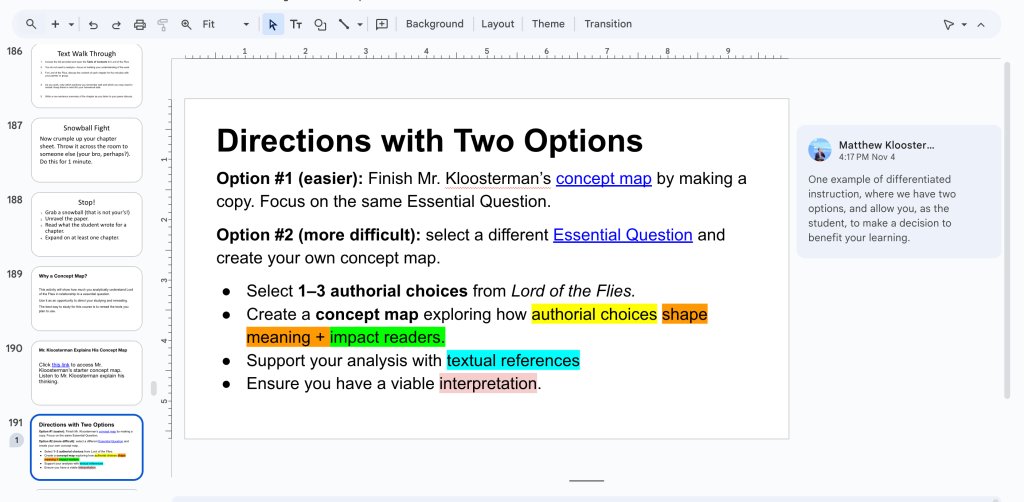
During this activity, I confer with students on the decisions they make, prompting metacognition.
How HyperSlides Benefit Teachers
HyperSlides have benefited my planning and refined department collaboration. Both my long-range and short-term planning have improved due to HyperSlides; I try to make all the unit’s slides before delivery to students. That way, students have all the material before we start a unit.
The unit’s design is not chiseled in stone. After a formative assessment, students may witness slide arrangement and editing throughout the unit. I explain that this approach shows how the unit is tailored to the cohorts’ needs, instead of making the cohort fit within a unit’s original design. This is one of many practices I use regularly to adapt for our learners. For learners, it’s an opportunity to witness tailored instruction and adaptation.
HyperSlides also streamline grade-level collaboration. My teaching partner, Sean Fox, describes HyperSlides as “a collaborative learning hub, a central space that brings materials and student work together.”
“Content can be adjusted quickly for different classes or learning needs without rebuilding lessons from scratch,” he said. “Teachers can plan together with ease, as well as comment on and edit resources in the same space students use, improving consistency and shared practice.”
Our grade-level team prefers HyperSlides, but other formats can provide many of the same benefits.
A learning management system (LMS) can offer much of the same functionality or can be used in tandem with HyperSlides. (Our school leaders access our HyperSlides through an LMS, allowing them to see one of the many pulses of learning in our classroom.)
HyperPDFs are hyperlinked PDFs. Like HyperSlides, they can contain lesson overviews, objectives, agendas, tables of contents, and links to helpful, whole-unit resources, such as a link to an audiobook of a text being studied. Of course, they can also contain links to collaboration activities, individual activities, and nondigital activities. Directions for each activity can be simplified with numbered directions to guide learners. All of this increases accessibility for student review and holistic access.
HyperSlides will not ease every teaching responsibility we have. However, I have found that HyperSlides have significantly lessened my workload, providing me more time for spontaneous moments of learning with my students.